 by
by Introduction
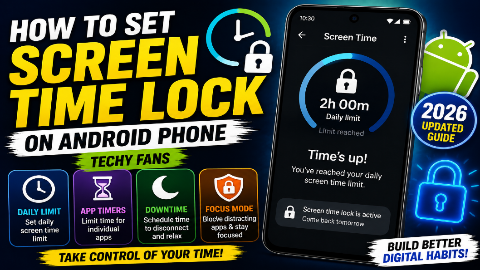
Do you spend too much time on your Android phone and want to control your daily screen time? Android provides built-in tools that can help you monitor phone usage, limit individual apps, schedule downtime, and manage daily device usage.
In 2026, Android users can use features such as Digital Wellbeing, App Timers, Focus Mode, Bedtime Mode, and Parental Controls to manage screen time.
A particularly useful feature is the Daily Limit available through Android’s Parental Controls on supported devices. When the daily limit is reached, the device can be locked.
In this guide, we’ll explain how to set a screen time lock on an Android phone, how to limit individual apps, how to schedule downtime, and how to use Android’s built-in tools without installing an unknown third-party application.
What Is Screen Time Lock on Android?
A screen time lock is a feature that limits how long a phone or particular app can be used.
For example, you could configure a daily limit so that after a certain amount of phone usage, the device becomes locked.
You can also set individual app timers.
For example:
- YouTube – 1 hour
- Instagram – 30 minutes
- Games – 45 minutes
- Chrome – 1 hour
Android’s Digital Wellbeing tools can show how much time you’ve spent in apps and allow you to create daily app timers.
Does Android Have a Built-In Screen Time Lock?
Yes, Android provides several built-in screen-time management options.
Depending on your phone and Android version, you may find:
- Digital Wellbeing
- App timers
- Focus mode
- Bedtime mode
- Parental controls
- Daily limits
- Downtime
- App limits
The exact features and menu locations can vary between manufacturers and Android versions.
Method 1: Set an App Timer With Digital Wellbeing
The easiest method for controlling individual applications is Digital Wellbeing.
You don’t necessarily need to lock the entire phone. Instead, you can set a daily limit for specific apps.
Step 1: Open Settings
Open the Settings application on your Android phone.
Step 2: Open Digital Wellbeing
Scroll down and tap:
Digital Wellbeing & parental controls
On some phones, it may simply be called:
Digital Wellbeing
Step 3: Check Your Screen Time
You’ll see information about your phone usage.
Depending on your Android version, this can include:
- Total screen time
- Apps used
- Number of times apps were opened
- Notifications received
Google says the Digital Wellbeing dashboard can show how long you’ve used apps and how often you’ve opened them.
Step 4: Select App Timers
Tap App timers or select an app from the usage dashboard.
Step 5: Choose an App
Select the application you want to limit.
For example:
YouTube
Step 6: Set the Time
Choose how long you want to allow yourself to use the app each day.
For example:
30 minutes
Step 7: Save the Timer
Tap OK or the equivalent confirmation button.
When the allocated time runs out, Android can close the app and dim its icon. App timers normally reset at midnight.
Method 2: Set a Daily Screen Time Lock
If your Android version supports the newer Parental Controls device-level limits, you can configure a daily usage limit.
This is different from an individual app timer.
A daily limit can restrict the amount of time the entire device can be used.
Step 1: Open Settings
Go to:
Settings
Step 2: Open Parental Controls
Look for:
Parental controls
On supported Android versions, this section provides options such as daily limits, downtime, and app limits.
Step 3: Select Daily Limit
Tap:
Daily limit
Step 4: Turn On the Daily Limit
Enable:
Use daily limit
Step 5: Choose a Day
Select the day you want to configure.
For example:
Monday
Step 6: Select the Usage Limit
Choose the amount of time you want the device to be available.
For example:
2 hours
Step 7: Apply the Schedule
You can configure different limits for different days or apply the same limit across the week where supported.
When the daily limit is reached, Android can lock the device.
Method 3: Set Downtime
Another useful option is Downtime.
Downtime lets you specify a period during which the device is restricted.
For example, you could create a schedule for:
10:00 PM – 7:00 AM
This can be useful for creating a regular bedtime routine or reducing phone use during specific hours.
Google’s current Android guidance describes Downtime as a period when the device can be locked and app access limited.
How to Set Downtime on Android
The exact menu may differ, but on supported Android devices:
- Open Settings.
- Tap Parental controls.
- Select Downtime.
- Turn on Use downtime.
- Select a day.
- Choose a start time.
- Choose an end time.
- Save the schedule.
You can repeat this for different days of the week.
Method 4: Use Focus Mode
If you don’t want the phone completely locked, Focus mode can be a better option.
Focus mode allows you to select distracting apps and temporarily pause them.
When Focus mode is active, selected apps can’t be used normally and their notifications are paused.
How to Enable Focus Mode
- Open Settings.
- Go to Digital Wellbeing & parental controls.
- Tap Focus mode.
- Select the apps you want to pause.
- Tap Turn on now.
You can also schedule Focus mode to activate automatically.
Method 5: Use Bedtime Mode
Android’s Bedtime mode is designed to reduce distractions at night.
Depending on your phone, you can schedule Bedtime mode and configure options such as:
- Do Not Disturb
- Grayscale
- Dim wallpaper
- Dark theme
- Keeping the screen dark
Google’s Android documentation provides Bedtime routines through Digital Wellbeing.
How to Set Bedtime Mode
- Open Settings.
- Tap Digital Wellbeing & parental controls.
- Select Bedtime mode.
- Open Bedtime routine.
- Choose your schedule.
- Select the options you want.
- Save the settings.
Screen Time Lock vs App Timer
These two features are often confused.
| Feature | What It Does |
|---|---|
| App Timer | Limits one particular app |
| Daily Limit | Limits overall device usage |
| Downtime | Restricts use during scheduled periods |
| Focus Mode | Temporarily pauses selected apps |
| Bedtime Mode | Reduces distractions during scheduled bedtime |
If you only want to reduce time spent on one application, use an App Timer.
If you want the entire device to become unavailable after a daily limit, use Daily Limit where your Android version supports it.
How to Set a 1-Hour Screen Time Limit
Suppose you want to use your phone for only one hour per day.
On a supported device:
- Open Settings.
- Tap Parental controls.
- Open Daily limit.
- Enable Use daily limit.
- Select the day.
- Set the limit to 1 hour.
- Save the settings.
Once the daily limit is reached, supported Android devices can lock the device.
How to Set a 2-Hour Screen Time Limit
You can follow the same process and select:
2 hours
This can be useful if you want to establish a daily phone-use schedule.
The exact controls available depend on the Android version and device configuration.
How to Set App Limits
Android also allows you to control individual apps through app limits.
For supported devices:
- Open Settings.
- Tap Parental controls.
- Select App limits.
- Choose an application.
- Tap Set time limit.
- Select the desired number of hours and minutes.
- Save the setting.
Google says app limits are available on supported Android devices and can be configured for individual applications.
Can You Lock YouTube After a Certain Time?
Yes, if your Android phone supports app timers or app limits.
For example, you could set:
YouTube → 60 minutes
After the allowed time is used, the app can be paused or closed depending on the feature and Android version.
This is useful when you want to control one particular app without restricting the entire phone.
Can You Lock Games After a Certain Time?
Yes.
You can select an individual game and set an app timer or app limit.
For example:
Game → 45 minutes per day
This lets you control game usage while keeping other applications available.
How to Protect App Time Limits With a PIN
Some Android devices provide an App limits PIN.
This can help prevent someone from simply changing the app-time limit.
Google’s Digital Wellbeing documentation says supported devices can use an App limits PIN and recommends keeping that PIN private.
Setup
- Open Settings.
- Tap Digital Wellbeing.
- Open App limits.
- Select App limits PIN.
- Turn on the PIN option.
- Create a unique four-digit PIN.
- Confirm it.
The exact menu may differ by device.
Screen Time Lock for Children
Parents and guardians can use Google’s parental-control features to manage a child’s screen time.
With Family Link, a parent can set daily limits and app limits on a child’s Android device. Google says a child’s device can be set to lock after reaching the configured screen-time limit or during scheduled downtime.
This can include:
- Daily screen-time limits
- App limits
- Downtime
- Weekly schedules
- Bonus time
- App management
How Family Link Screen Time Limits Work
A parent can use Family Link to manage a child’s screen time.
Generally:
- Open Family Link on the parent’s device.
- Select the child’s profile.
- Open Screen time.
- Select Time limits.
- Choose the appropriate limit.
- Save the schedule.
Google also provides options for setting individual app limits.
Why Use Screen Time Lock?
There are several reasons someone might want to manage phone usage.
Reduce Distractions
Limiting certain apps can make it easier to concentrate.
Create a Study Schedule
You can use Focus mode or app limits during study periods.
Improve Bedtime Habits
Bedtime mode can reduce interruptions during scheduled nighttime hours.
Control Gaming Time
App limits can help manage how long a game is available each day.
Monitor Phone Usage
Digital Wellbeing provides usage information so you can understand how you’re spending time on your phone.
Do You Need a Third-Party Screen Time App?
Not necessarily.
Android already includes several built-in screen-time management tools.
Using the built-in options can be preferable because you don’t need to give an unknown third-party app additional permissions.
However, some manufacturers may provide their own additional controls, and the exact features can vary by device.
Why Can’t I Find Digital Wellbeing?
If you don’t see Digital Wellbeing, try searching your phone’s Settings.
Search for:
Digital Wellbeing
or:
Digital Wellbeing & parental controls
Google notes that some settings and steps can vary depending on the device.
You can also check whether your Android version supports the relevant feature.
Why Can’t I Find Daily Limit?
The Daily Limit option isn’t identical across every Android phone.
It depends on your Android version and the available parental-control implementation.
If you don’t see it, you may still have access to:
- Digital Wellbeing
- App timers
- Focus mode
- Bedtime mode
- Manufacturer-specific controls
Google’s current documentation specifically lists Daily Limit under supported Android Parental Controls.
Does Screen Time Lock Delete My Apps?
No.
A screen-time limit is designed to restrict access or usage; it does not normally uninstall your applications.
Your apps and personal data remain on the device.
Does Screen Time Lock Turn Off at Midnight?
For Digital Wellbeing app timers, Google says the timers reset at midnight.
Daily device limits and parental-control schedules can follow their own configured schedule.
What Happens When the Screen Time Limit Is Reached?
The behavior depends on the feature you’re using.
For an app timer, the app can close and its icon can become dimmed.
For supported device-level Daily Limits, Android can lock the device after the limit is reached.
Best Screen Time Settings for Android
Here is an example setup you can customize:
| Setting | Example |
|---|---|
| Daily device limit | 2 hours |
| Social media | 30 minutes |
| Video apps | 45 minutes |
| Games | 30 minutes |
| Focus mode | Study/work hours |
| Bedtime mode | Night schedule |
| App limits PIN | Enabled where appropriate |
These are only examples. Choose limits that fit your own routine.
Tips for Managing Screen Time
Check Your Usage First
Before creating limits, look at your Digital Wellbeing dashboard.
You may discover that one or two apps account for most of your usage.
Start With Small Changes
Instead of changing everything at once, try reducing one distracting activity.
Use Focus Mode
Focus mode can temporarily pause distracting applications.
Schedule Downtime
Use scheduled downtime if you want certain periods where phone use is restricted.
Use Bedtime Mode
Bedtime mode can reduce notifications and visual distractions during your chosen schedule.
Frequently Asked Questions
How do I set a screen time lock on Android?
On supported Android phones, open Settings → Parental controls → Daily limit, enable the limit, and choose the amount of daily device usage. When the limit is reached, the device can lock.
Can I set a screen time limit for one app?
Yes. Open Digital Wellbeing → App timers, select the application, and choose the daily time limit.
Can I lock my Android phone after 1 hour?
On supported devices with Daily Limit, you can configure a one-hour daily device limit.
Can I set different limits for different apps?
Yes. App timers and app limits can be configured separately for supported applications.
Does Android have a built-in screen time feature?
Yes. Android includes Digital Wellbeing and, on supported versions/devices, Parental Controls with features such as Daily Limit and App Limits.
Can I set a screen time lock without an app?
Yes. Android’s built-in Digital Wellbeing and Parental Controls features can handle many screen-time tasks without installing a third-party application.
Can I set a screen time limit for a child?
Yes. Family Link allows parents to manage screen time and app limits for a child’s Android device.
What is the difference between screen time and app time?
Screen time refers to overall device usage, while an app timer limits how long a specific application can be used.
Can I use Focus Mode instead of screen time lock?
Yes. Focus mode is useful when your goal is to pause distracting apps temporarily rather than lock the entire device.
Why are my Android settings different?
Android menus and features can vary between manufacturers, Android versions, and device configurations.

Conclusion
Setting a screen time lock on an Android phone in 2026 doesn’t necessarily require a third-party application.
Depending on your phone and Android version, you can use built-in tools such as Digital Wellbeing, App Timers, Focus Mode, Bedtime Mode, Daily Limit, Downtime, and App Limits.
If you want to restrict one application, an App Timer is usually the simplest option. If your supported Android device provides Daily Limit, you can configure a maximum amount of device usage and have the phone lock when that limit is reached.
For children, Family Link provides additional tools for managing screen time, app limits, and scheduled downtime.
The most important thing is to check the exact settings available on your phone because Android manufacturers can change menu names and locations.